Install AdhanTV on your TV box

Installing AdhanTV takes about five minutes and only needs the remote. Choose one of the three ways below; any way that works on your box is fine.

What you need

  • An Android TV box, Google TV device or smart TV with Android TV (Android 7.0 or newer)
  • An internet connection
  • HDMI-CEC switched on, if the TV should switch on by itself

Easiest on the TV box itself

Open the Downloader app on your TV box and type:

adhantv.net/apk

Version 2.2 · for Android TV and Google TV · Android 7.0 or newer

Way 1: with the browser on your TV box

Does your box have a web browser, such as Chrome or TV Bro? Then this is the quickest way.

  1. Open the browser on your TV box.

  2. Type adhantv.net/apk in the address bar and press OK. The download of AdhanTV.apk starts.

  3. When the download has finished, open the file from the browser's downloads.

  4. Android asks whether the browser may install apps. Choose Settings, switch on Allow from this source and press Back.

  5. Choose Install and then Open.

Way 2: with the Downloader app (works on almost every box)

Downloader is a free app from the Google Play Store that downloads and installs files. Ideal when your box has no browser.

  1. Press the Home button and open the Google Play Store (on Google TV: Apps › search).

  2. Search for Downloader, choose the orange app Downloader by AFTVnews, press Install and then Open.

  3. Allow access to files when Downloader asks for it.

  4. Select the white address field, type adhantv.net/apk with the on-screen keyboard and press Go.

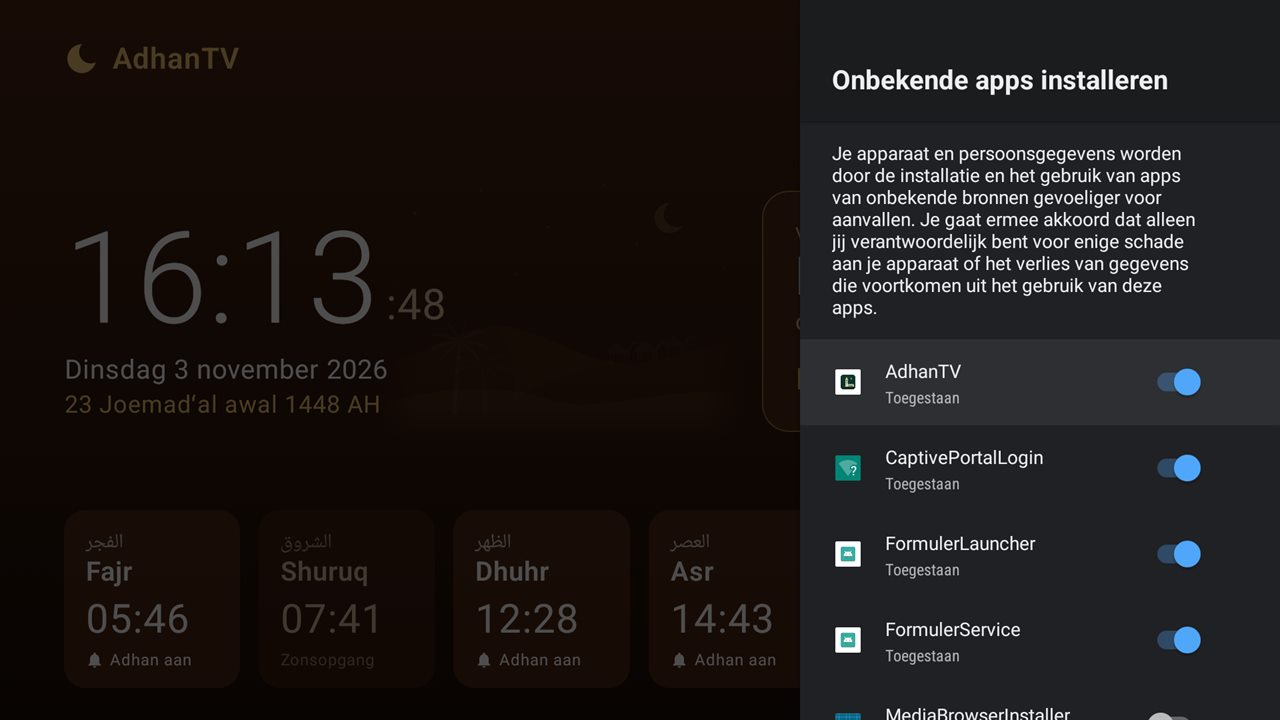
  5. The download starts. If Android says installing is blocked, choose Settings, switch on Downloader under *Install unknown apps* (see the picture) and press Back.

  6. Choose Install. When it is ready, choose Open: the AdhanTV setup starts.

  7. Downloader asks whether to delete the downloaded file. Choose Delete; it is no longer needed.

The Android screen Install unknown apps, with a switch for each app

Way 3: with a USB stick

No internet on the box, or no luck with the other ways? Use a computer and a USB stick.

  1. Download the APK on your computer with the button below.

  2. Copy the file AdhanTV.apk to a USB stick and put the stick in the TV box.

  3. Open the file with a file manager on the box, for example *Files*. Allow that file manager to install apps when Android asks.

  4. Choose Install and then Open.

"Install unknown apps"

Android only installs apps from outside Google Play when you allow it for the app you install with, such as Downloader or the file manager. On older boxes this is one setting called Unknown sources under Settings › Security & restrictions. You can switch it off again after installing.

The first start: setup in five steps

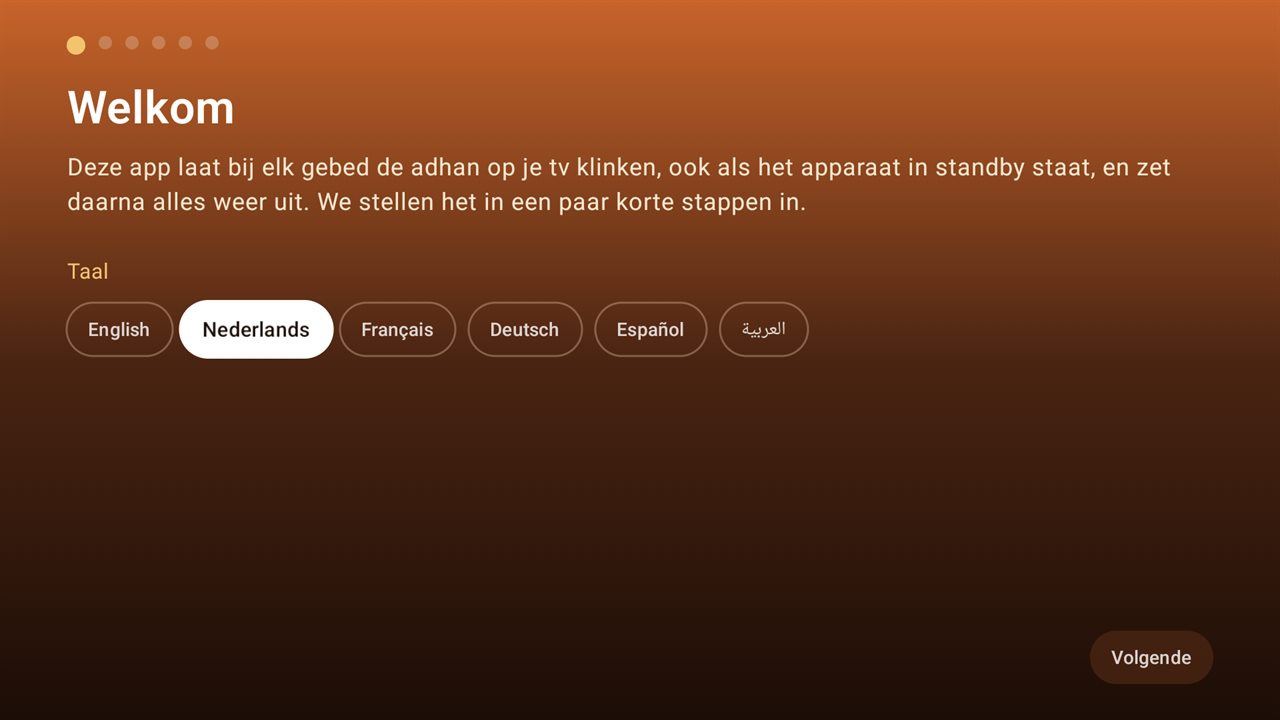
Setup step 1: welcome and language

1Language

Choose the language of the app.

2Prayer times

Choose My city, then your country and city. The usual calculation method there is set for you.

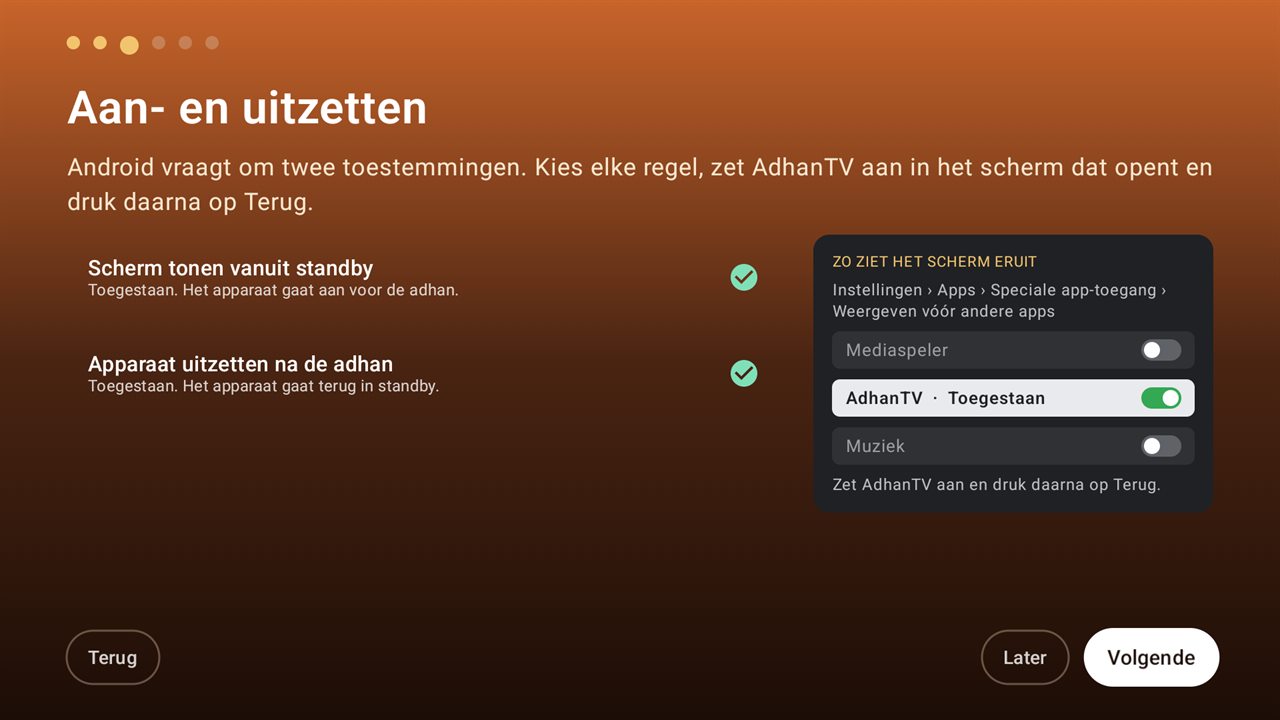
Setup step: the permissions to switch the box on and off

3Switching on and off

Android asks for a few permissions. Select each line, switch AdhanTV on in the screen that opens and press Back: Display over other apps → AdhanTV → Allow, and Accessibility → AdhanTV → On. On newer Android versions also Alarms & reminders. On Android 7 and 8: device admin.

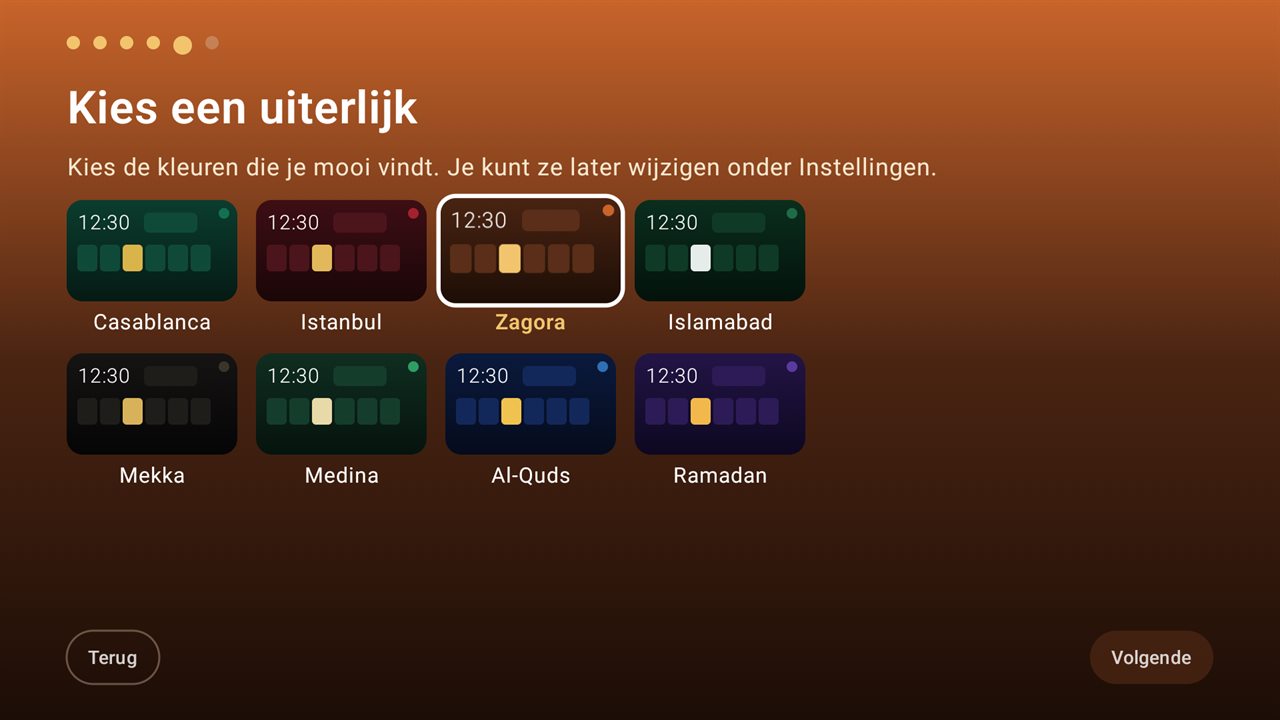
Setup step: choose a theme

4Look and prayer break

Choose a theme, and whether a prayer break with a countdown follows the adhan.

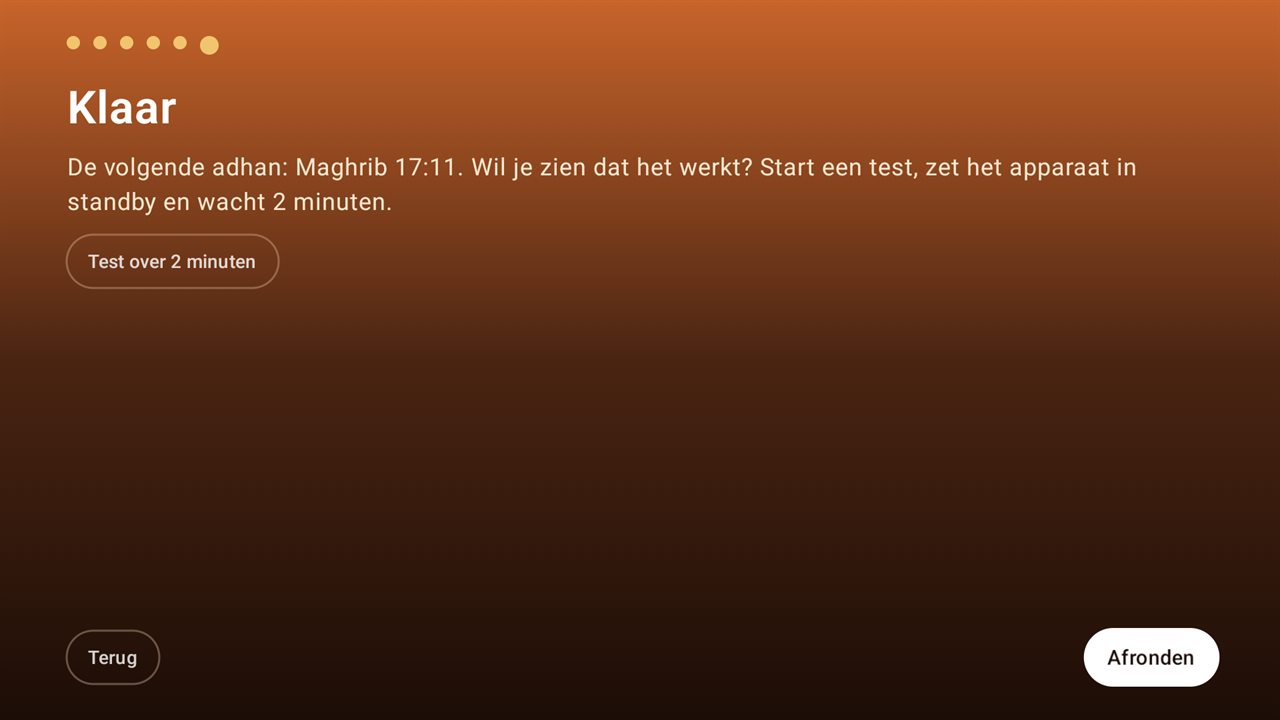
Last setup step: start a test

5Test

Start the test, put the box in standby with the remote and wait two minutes: the adhan plays and the box goes back to standby.

Tips for a reliable adhan

  • Switch HDMI-CEC on, on the TV box and on the TV, so the TV follows the box.
  • Put the box in standby with the remote; don't unplug it.
  • Never use Force stop on AdhanTV and don't use cleaner or booster apps on it.
  • Check that the date, time and time zone of the box are correct.
  • Lock the settings with a PIN under Settings › Lock and help, so nobody changes them by accident.

Updating and removing

AdhanTV from this site checks for a new version by itself and asks whether to install it. The first time, Android asks you to allow AdhanTV to install apps. To remove AdhanTV on Android 7 or 8, first switch off device admin under Settings › TV control.

Stuck? Send us a message and mention the brand and model of your TV box.